
A staging website provides a safer place to test changes, but it is not a substitute for backups, privacy controls or a careful release procedure.
This guide focuses on the choices readers can verify, the mistakes that create unnecessary risk, and the records or instructions worth checking before they act. Details differ by person, location and equipment or legal setting. Use current primary sources for anything that could change after publication.
Understanding WordPress staging site checklist before making a decision
A WordPress staging site checklist begins by defining what will be copied, what will be tested and how changes will reach production. Staging is useful for theme edits, plugin updates, CSS changes and layout experiments, but an unprotected clone can expose user data or confuse search engines. Treat the environment as a controlled part of development, not a spare public website.
A production release needs a written scope, even for a small WordPress site. List the plugins and templates being changed, how to test them and what constitutes a failed deployment. This prevents the team from pushing unrelated modifications simply because they are present on staging. A narrow release is easier to verify and easier to roll back when unexpected behavior appears.
Identify the facts and limits first
Start with a reliable current backup of both the database and the files. A staging copy is not itself a recovery strategy because it may be incomplete or overwritten during testing. Confirm where the backup is stored and how it can be restored. WordPress documentation recommends backups before core updates, and the same principle applies to substantial plugin changes.
Choose a staging method that matches the hosting architecture. Managed hosts may provide built-in one-click staging, while self-hosted installations may require a subdomain or separate server. WordPress.com has specific plan-based staging features that should not be confused with generic self-hosted WordPress capabilities. Read the host’s documentation before choosing an automated synchronization option.
Protect staging with authentication and privacy controls
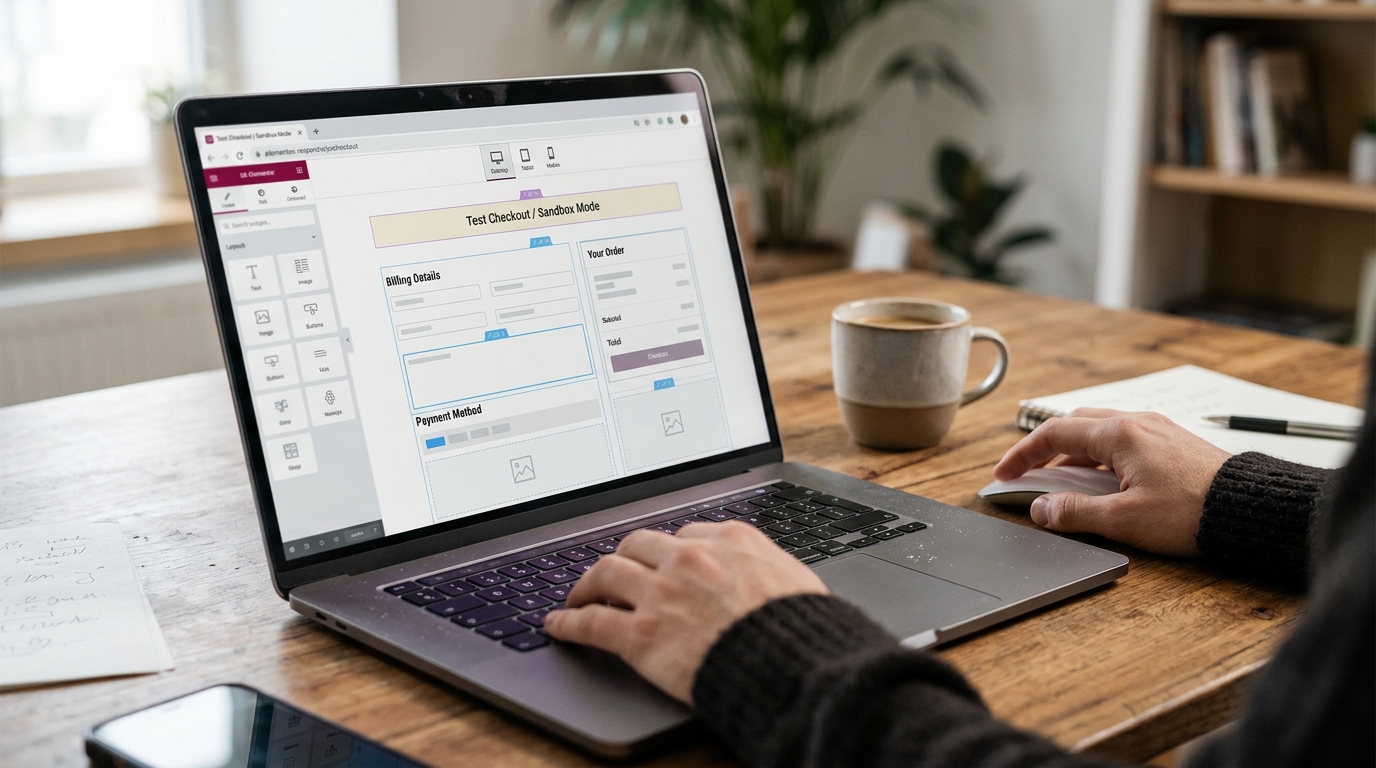
Access control matters from the moment a clone is created. Restrict staging access with authentication, avoid public customer data where possible and check how payment integrations behave. A ‘discourage search engines’ checkbox alone does not secure sensitive information. Test whether visitors can reach the environment without proper authorization.
A real ecommerce site presents a moving database problem. Orders and customer records may change every minute, while the staging clone preserves an older snapshot. Replacing production data from that snapshot can erase business activity. Use migration methods appropriate to the actual change and ask the host or developer to explain exactly what tables or files will be overwritten.
Test Elementor templates and WooCommerce flows
WooCommerce orders, subscriptions and customers introduce special risk. A database copied in the morning becomes stale as live transactions continue. Pushing an old staging database over production can overwrite real orders or accounts. Distinguish file-only deployment from database migration and obtain a deliberate change plan before synchronizing anything back.
Email is another common trap. A staging checkout may send real order notifications, password resets or customer messages unless outgoing mail is blocked or routed safely. Configure a test email service and inspect scheduled tasks. Preventing unwanted messages is part of responsible staging, not merely a nice extra.
Recognize where assumptions break down
When testing Elementor, compare responsive layouts at desktop, tablet and mobile widths. Watch for global style changes, missing fonts, image paths and dynamic template conditions. A page that looks correct in the editor can behave differently when cached or served to logged-out visitors. Test the published preview and navigation paths, not only the editing canvas.
Plugin updates should be tested in the same sequence planned for production. Record versions before beginning, then change one major component at a time where feasible. This makes regressions easier to locate. Check PHP compatibility and server logs when errors appear, rather than blindly deactivating every plugin and assuming the problem is fixed.
Automated tests can complement manual checks but should not replace them entirely. A script may confirm a page returns HTTP 200 while the mobile menu, form validation or checkout still fails. Pair machine checks with a short human smoke test. Record the expected result so another developer can repeat it consistently after future releases.
Practical steps for WordPress staging site checklist
Functional tests matter more than screenshots. Submit a contact form to a controlled address, check product variations, exercise search and confirm that menus, redirects and account pages behave as expected. For WooCommerce, use sandbox payment modes and avoid creating real charges. Document expected results before testing so the outcome is unambiguous.
Performance can differ between staging and production because of caching, traffic, hosting resources and indexing rules. Use staging to find obvious regressions, but verify important Core Web Vitals on the live site after rollout. Do not assume one staging performance score predicts actual field experience for every visitor.
Evaluate evidence and next steps
Plan a rollback before making the production change. Know which files and database backup correspond to the release and how long restoration might affect service. For a busy shop, choose a low-risk deployment window and coordinate with staff handling orders. Emergency recovery becomes harder when the team is discovering its backup tools for the first time.
Privacy is easy to overlook when a staging clone contains real customer records. Use access restrictions and consider anonymizing data for development where practical. Do not permit search engines or public visitors to reach the clone simply because its address is obscure. Security depends on actual controls, not on hoping no one guesses the URL.
Plan file versus database synchronization carefully
After release, test the live site in a private browser session and review logs, email delivery, checkout and key page templates. Keep monitoring for issues that appear only under real traffic or certain user roles. Record what changed and retain an audit trail so a future developer can understand why a plugin was upgraded or a setting modified.
Deploy with rollback and production smoke tests

A WordPress staging site checklist is effective only when it protects live data and supports repeatable decisions. Back up first, secure the clone, test meaningful workflows and promote changes with a rollback plan. The objective is to reduce deployment risk without confusing staging with a guaranteed error-free release.
Staging is valuable when the team learns from each release. Keep a brief change log containing versions, screenshots, test results and the backup reference. If a regression appears next month, those notes explain what was deployed and how the original decision was made. A reliable workflow is repeatable, not dependent on one developer remembering every setting.
Practical checklist:
- Create verified backups before cloning the site
- Protect staging with authentication and privacy controls
- Disable real payments and outgoing customer emails
- Test Elementor templates and WooCommerce flows
- Plan file versus database synchronization carefully
- Deploy with rollback and production smoke tests
Common questions
Is staging a replacement for a backup? No. A separate restorable backup is essential.
Can I push the entire staging database to a live store? That can overwrite new orders or users; plan database changes carefully.
Does noindex make staging private? No. Restrict access with authentication and proper controls.
Should performance be checked after deployment? Yes. Production caching, traffic and infrastructure can differ.
For related context, see the progzonline.com guide. For authoritative reference, review this primary resource and additional official or technical guidance. Verify updates, dates and jurisdiction before applying general guidance to a specific situation.
Use this guide as a starting framework rather than a promise of a particular outcome. For WordPress staging site checklist, the most useful next move is to verify the applicable details, preserve accurate information and make a decision based on the real conditions in front of you. When specialist advice, official instructions or a qualified inspection is appropriate, seek that input before a decision becomes difficult to reverse.