

WordPress administrators manage content, plugins, themes, users, customer data, and sometimes an entire online store through one login screen. That makes authentication a high-value target for phishing, password reuse, credential stuffing, and automated login attempts.
Passkeys offer a different model. Instead of typing a shared secret that can be copied or entered on a deceptive website, a user authenticates with a credential linked to the legitimate site and protected by a device unlock method such as a fingerprint, facial recognition, PIN, pattern, or security key.
That sounds like an obvious upgrade, but a secure WordPress rollout involves more than installing a plugin and hiding the password field. Site owners need to evaluate browser support, account recovery, domain handling, user roles, fallback methods, logs, plugin maintenance, and emergency access. This guide explains when passkeys are worth using and how to introduce them without locking out the people who maintain the site.
How Passkeys Change WordPress Authentication
A passkey is a digital credential tied to a user account and a website or application. The underlying web technology is WebAuthn, which allows the browser and operating system to participate in a public-key authentication ceremony.
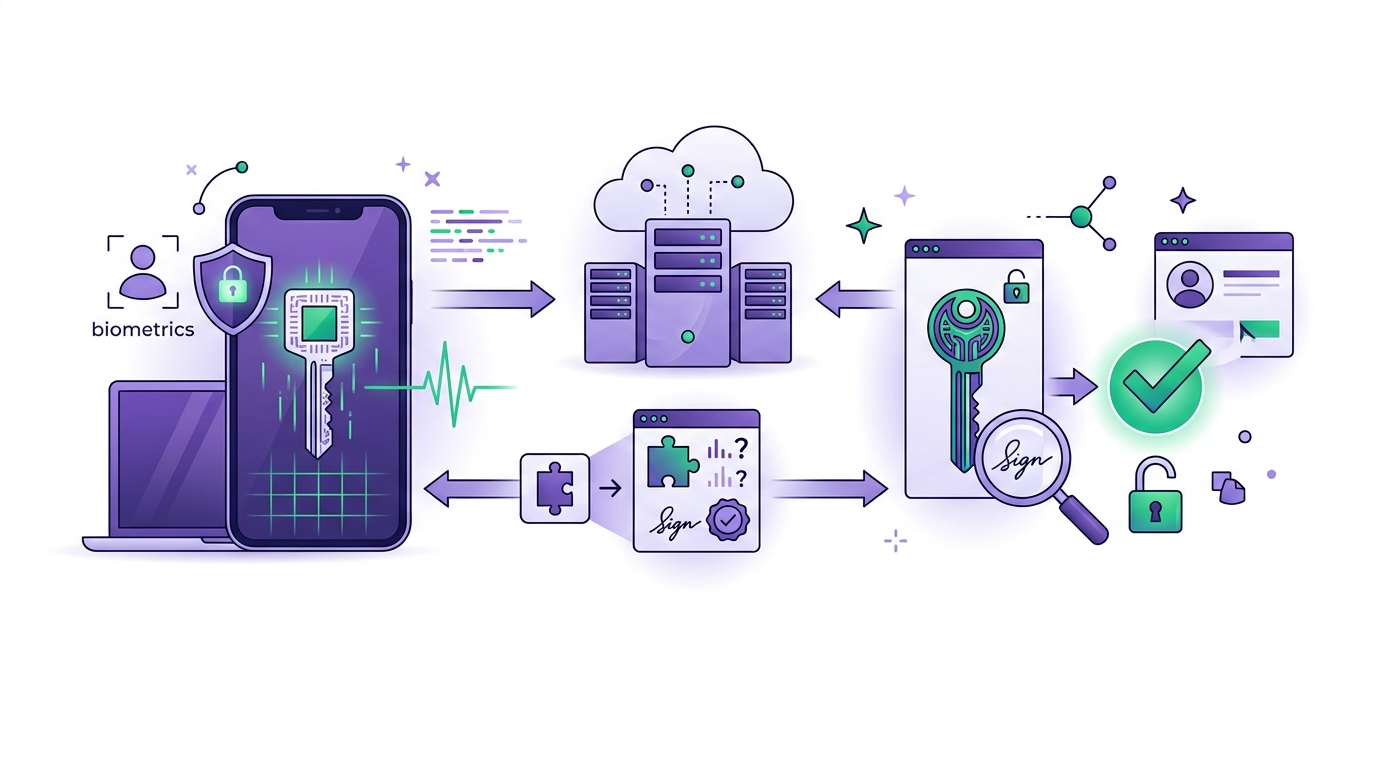
The user may approve sign-in with a biometric sensor, but the website does not receive or store the fingerprint or face data. The local device or authenticator verifies the user and then signs a server challenge with the appropriate credential.
Passkeys replace a shared secret with a cryptographic credential
A password works because the user and website both know information that proves identity. Even when the website stores a secure hash rather than the original password, the user still types the secret into a form. Attackers can steal it through phishing, malware, reuse from another breach, or weak recovery processes.
With passkeys, registration creates a key pair for the account and site. The public credential data goes to the server. The private credential remains protected by the user’s authenticator. During login, the server provides a challenge, and the authenticator produces a valid signature after the user approves the request.
The private credential stays with the authenticator
The WordPress implementation needs enough public credential information to verify future signatures, but it should never receive the private key. Depending on the platform, a passkey may be synced securely across the user’s devices or remain bound to a specific device or hardware security key.
This distinction affects onboarding and recovery. A synced passkey can make a new device easier to use, while a device-bound hardware key may fit an organization that wants stronger physical control. Administrators should understand which credential types their chosen implementation permits.
Phishing resistance does not solve every account-security problem
Passkeys are phishing-resistant because the credential is bound to the legitimate website identity. A deceptive domain cannot simply display a familiar-looking form and receive the credential. The browser and operating system verify the relying party during authentication.
However, passkeys do not repair malicious plugins, stolen sessions, excessive administrator privileges, vulnerable recovery flows, compromised hosting accounts, or an infected administrator device. WordPress still needs updates, least-privilege roles, secure hosting, backups, monitoring, and careful extension management.
The official Google passkey documentation explains that passkeys are tied to registered websites and that servers retain public-key information rather than a reusable password secret.
WordPress sites can gain security and usability benefits
Passkeys can reduce password-reset requests and remove the need to type a complex administrator password on each login. They may also reduce exposure to password reuse and automated credential attacks. The experience can feel simpler because the user confirms with a familiar device unlock method.
For an agency, passkeys could improve access for internal administrators and trusted client editors. A membership or WooCommerce website may eventually use them for customer accounts, but that rollout has different support and recovery requirements from a small administrator-only deployment.
WordPress does not become passwordless merely because one administrator registers a passkey. The selected plugin or identity provider determines whether passwords remain available, whether new accounts can register passkeys, where the control appears, how multiple credentials are managed, and what happens during recovery.
Recovery and fallback access determine whether the rollout succeeds
A user may lose a phone, replace a laptop, leave an organization, clear credentials, change ecosystems, or arrive with an unsupported browser. Plan for those events before requiring passkeys. Administrators should register more than one approved credential when the solution supports it, such as a synced passkey plus a securely stored hardware key.
Fallback methods must not become an easier attack path than the passkey itself. A password, email link, support reset, or hosting-panel bypass needs strong verification, rate limits, alerts, and documented ownership. Emergency access should exist, but it should not be casual or invisible.
Domain changes also need attention because passkeys are bound to a relying-party identity. Moving between staging and production, changing from a temporary domain, altering subdomain architecture, or migrating a multisite network may affect registration and login behavior. Test the exact final domain structure.
How to Add Passkeys to WordPress Safely
Start with a limited goal. Administrator and editor accounts on a controlled site usually provide a safer pilot than enabling passwordless registration for every customer immediately. A small group can expose device, browser, recovery, and training problems before the change affects revenue or public support.
Use HTTPS everywhere, including login and account-management screens. Confirm that the canonical domain, redirects, reverse proxy, CDN, and staging setup do not create inconsistent origins. Authentication features should never be tested only through a cached public page.
Evaluate the implementation before changing the login policy
Review the plugin or identity provider as security-sensitive infrastructure. Check recent updates, active maintenance, supported WordPress and PHP versions, developer reputation, code visibility, support history, data handling, external-service dependencies, and published security fixes.
Understand where credential records are stored and how they are removed when a user leaves. Confirm whether users can register multiple passkeys, name their credentials, view registration dates, revoke a lost device, and receive alerts when a new credential is added.
Inspect account linking carefully. The implementation must attach a newly registered passkey to the correct authenticated WordPress user. Test administrators, editors, subscribers, multisite users, WooCommerce customers, custom roles, and accounts that share or change email addresses where those cases exist.
Use a staged WordPress passkey rollout checklist
Create a staging copy and confirm that its domain arrangement matches the planned test. Register credentials on the major devices and browsers used by the team. Test sign-in, sign-out, session expiration, multiple passkeys, credential removal, lost-device recovery, password fallback, and emergency administrator access.
Verify compatibility with custom login pages, security plugins, two-factor authentication, CAPTCHA, login-limit tools, single sign-on, WooCommerce account forms, membership plugins, mobile applications, REST authentication, and caching rules. Make sure a security layer does not block the WebAuthn request or accidentally bypass another control.

Review logs and notifications. Administrators should be able to investigate registration, authentication, revocation, fallback, and failure events without exposing sensitive credential material. Establish a response process for suspicious registration or recovery attempts.
Train users before enforcing a new policy. Explain what a passkey is, which devices they may register, how to add a backup credential, what to do after losing a device, and who can restore access. Do not assume that a familiar fingerprint prompt explains the account model.
Keep WordPress, PHP, themes, and authentication plugins current. Our PHP 8.5 WordPress upgrade guide explains how to test the wider runtime and plugin stack. The WordPress 7.1 preparation checklist covers related staging and update practices.
Passkeys are worth considering for WordPress administrators because they can reduce password exposure and make phishing-resistant login easier. They are not a complete security system. A successful rollout combines a maintained implementation, correct domain configuration, controlled registration, reliable recovery, multiple credentials, useful logs, and continued WordPress security hygiene.
Begin with high-value internal accounts, test every recovery path, and retain accountable human control over access changes. Once the process works reliably, expand it only where the security and usability benefits justify the additional support responsibility.